How to Recover VNC Passwords: A Step-by-Step Guide
2026-01-30 · 3 min read
VNC stands for Virtual Network Computing and is still one of the most popular applications for desktop sharing around the globe. It is often the case that a system administrator will be tasked with maintaining a legacy server or will have to migrate an old system and find that the VNC passwords have never been documented.
The good news is that the encryption algorithm used by most versions of VNC is not particularly strong. If the password's Hex string can be located, a known key can be used to recover the password.
How are VNC Passwords Actually Recovered?
The password storage method used by most VNC distributions, such as TigerVNC, UltraVNC, and RealVNC, is similar. In this tutorial, we will show you how to reverse the process using UltraVNC as our main example. First, we will identify where the password is stored, and then we will show you how to decode it.
Step 1: Locating the Password File
If you are using UltraVNC, the configuration is typically stored in the installation directory.
- Default Path: C:\Program Files\uvnc bvba\UltraVNC\ultravnc.ini
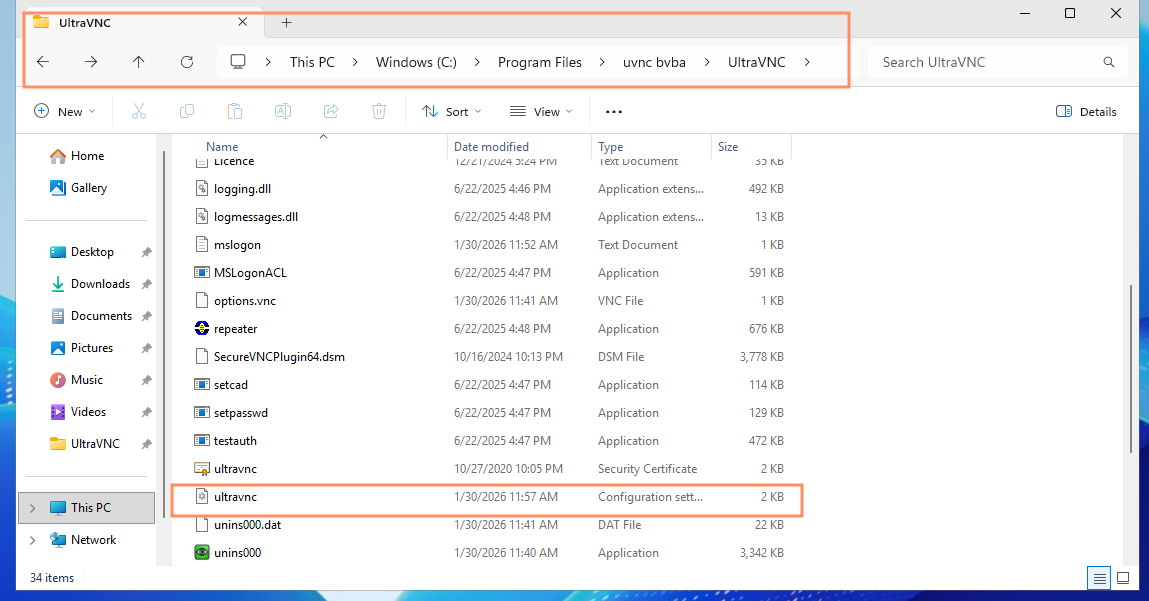
Figure 1: Location of ultravnc.ini file
If you open the ultravnc.ini file, you will see entries under the [ultravnc] header that look like this:
ultravnc.ini
[ultravnc]
passwd=6F526B3550327059AC
passwd2=706F5559316F6C44DD
Note: These values represent encrypted passwords stored in hexadecimal format. Default passwords may not always decrypt cleanly, so for demonstration purposes we will set a new password.
Step 2: Setting a Custom Password (Tutorial Case)
To see how the encryption changes, let’s set a new password:
- Open uvnc_settings.exe (located in the UltraVNC folder).
- Navigate to the Security tab.
- Enter a new VNC Password and View-Only Password.
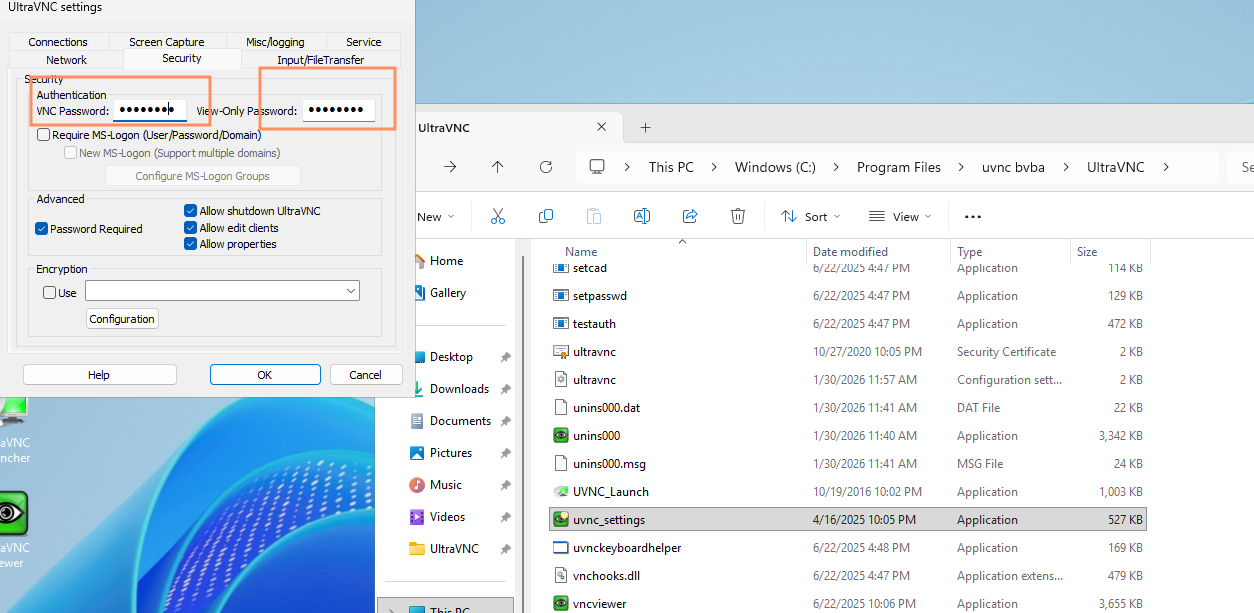
Figure 2: Setting a custom password in UltraVNC
Note: Remember that the password limitation is 8 characters. Any additional characters will be ignored or truncated.
Once you save your settings, the ultravnc.ini file will update with your new encrypted Hex string.
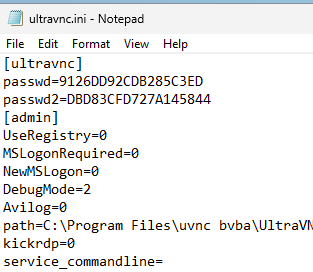
Figure 3: Open ultravnc.ini file
For Linux users, you can use the vncpasswd command to set a password,
vncpasswd
xxd -p ~/.vnc/passwd
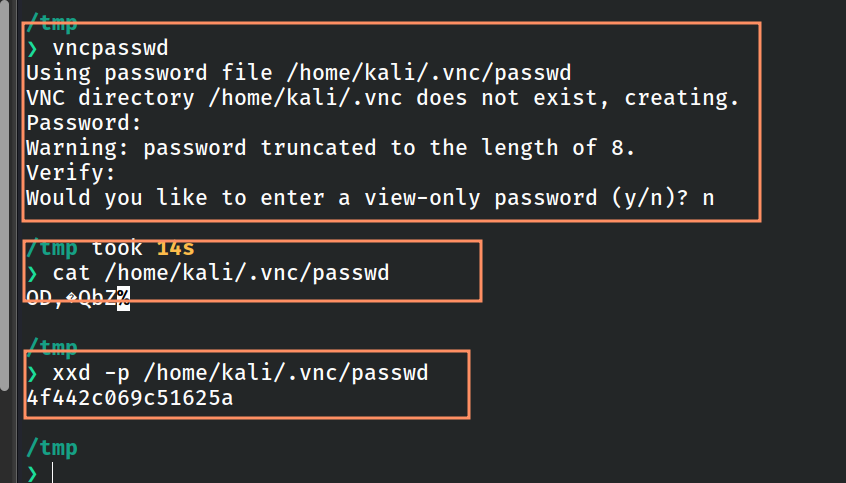
Figure 4: Set password using vncpasswd
Step 3: How Decryption Works
Most VNC servers use a fixed key and the DES algorithm to encrypt stored passwords. Because the encryption key is known, the stored password value can be recovered.
For example, the following command demonstrates decrypting a stored password value:
echo -n DBD83CFD727A145844 | xxd -r -p | \
openssl enc -des-cbc -nopad -nosalt \
-K e84ad660c4721ae0 \
-iv 0000000000000000 \
-d -provider legacy -provider default | hexdump -C

Figure 5: Decrypt VNC password
This shows how the encrypted value can be converted back into the original password.
Decrypting passwords using the command line or random GitHub code can be unreliable. A better option is to use the online VNC password decoder available at Key Decryptor. This tool provides a more effective solution for password recovery.
Simply paste your hexadecimal password into the tool to decrypt it easily and securely.
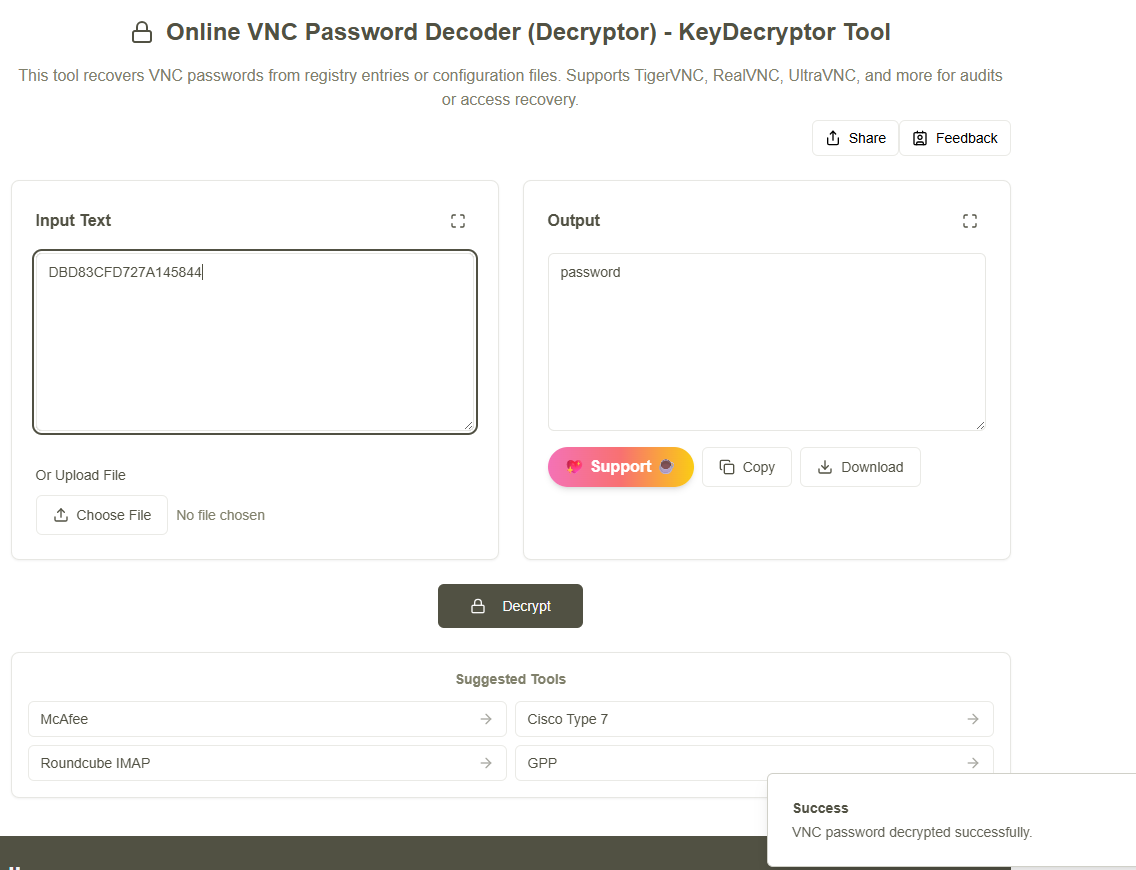
Figure 6: Keydecryptor VNC password decoder