Jenkins Security: Understanding and Recovering Encrypted Credentials
2026-02-01 · 3 min read
Description
When Jenkins interacts with cloud services or private repositories, security is essential. To handle this, Jenkins uses a Credentials system to store secret text, usernames, and SSH keys. These are stored in an encrypted format on the Jenkins controller to prevent plain-text exposure.
However, encryption is only as secure as the management of its keys. If an attacker (or an admin) has access to the Jenkins filesystem and the encryption keys, these secrets can be decrypted.
Process to Recover Jenkins Credentials
Before diving into the decryption or recovery process, let us first understand how Jenkins credentials work with a simple demonstration.
Step 1: Installing Credentials Plugin
- Ensure you have administrator privileges or relevant permissions.
- Go to Manage Jenkins > Plugins > Available plugins.
- Search for Credentials.
- Install the plugin.
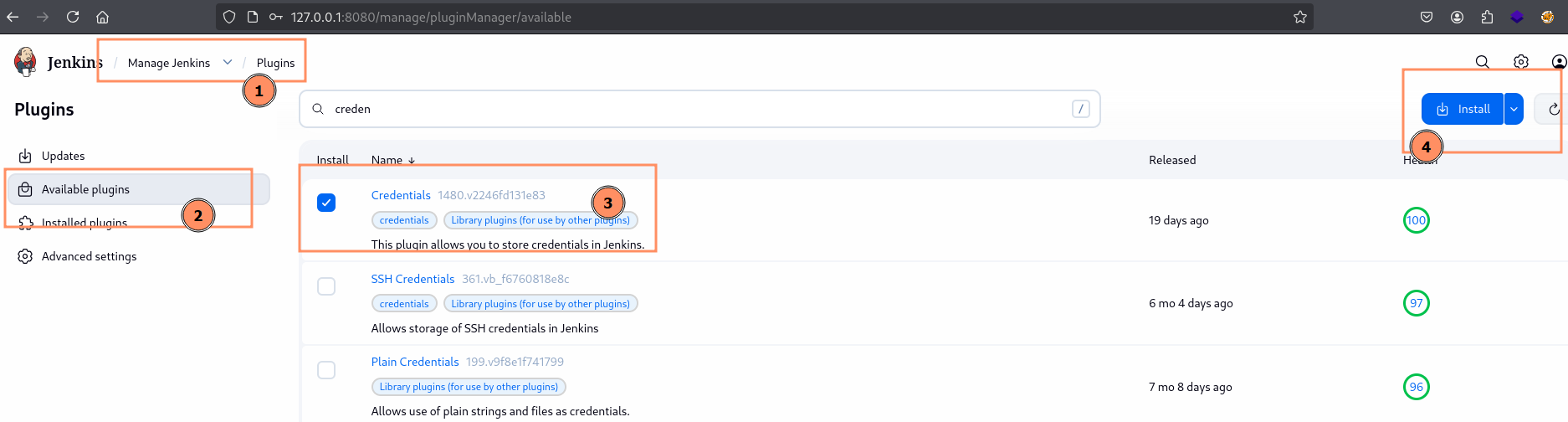
Figure 1: Installing Credentials Plugin
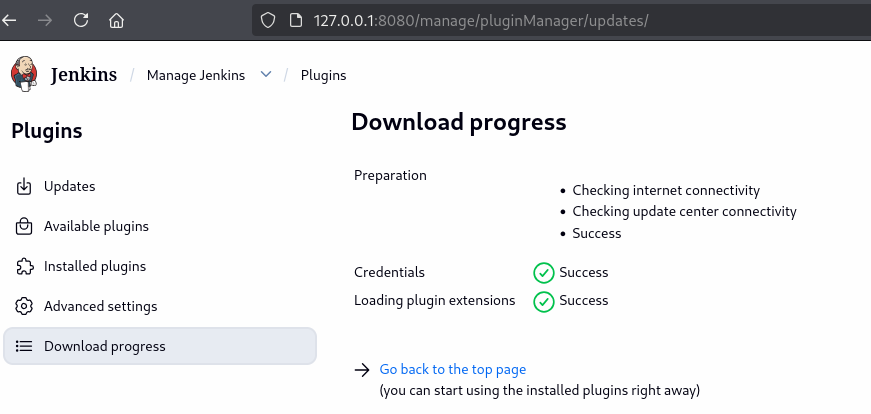
Figure 2: Download Progress
Step 2: Setting a Global Credential
After installation, you can configure a globally scoped credential.
- Go to Manage Jenkins > Credentials > Add Credentials.
- For this demonstration, choose Username and Password.
- Click the Create button.
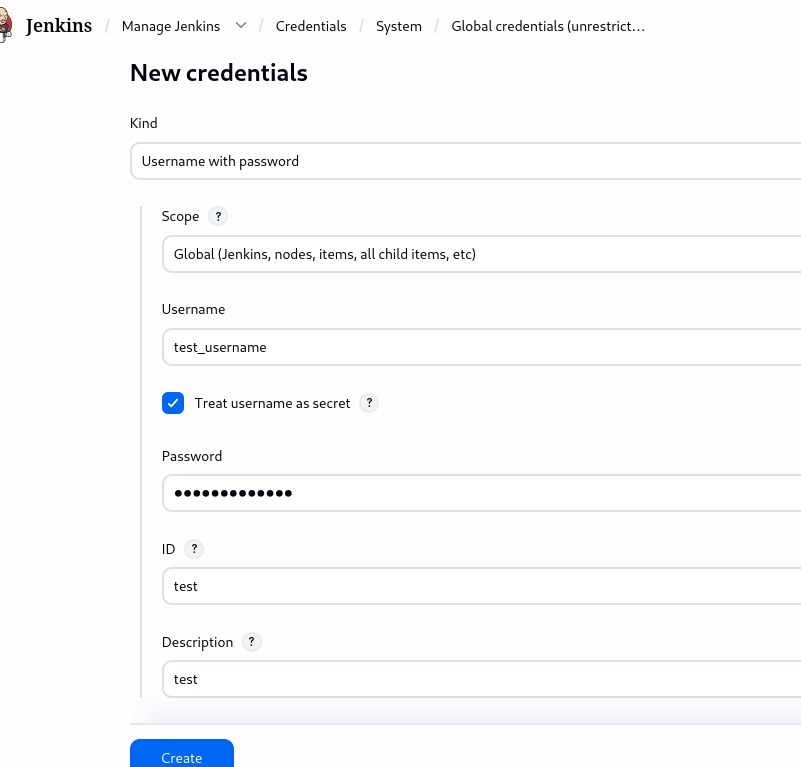
Figure 3: Setting New Credentials
The encrypted password is stored in the $JENKINS_HOME/credentials.xml file.
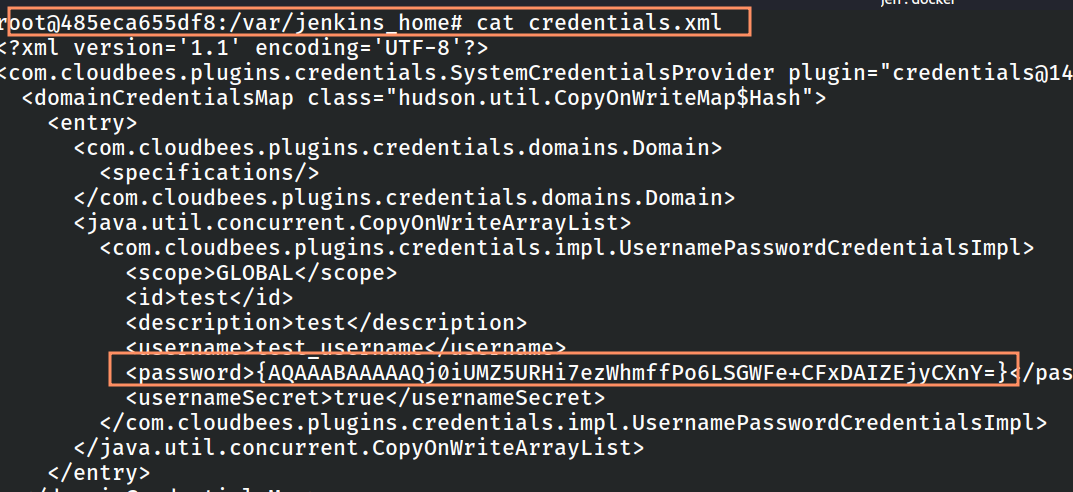
Figure 4: Location of credentials.xml file
Step 3: Decrypting Credentials
While you can use the Jenkins Script Console for decryption, using an external tool is often more efficient for bulk recovery or audits. We will use the jenkins-credentials-decryptor (a Golang-based tool).
The following files must be present:
- master.key - The primary encryption key used by Jenkins to protect stored secrets.
- hudson.util.Secret - Contains the encryption logic and secrets required to decrypt credentials.
- credentials.xml - Stores the encrypted Jenkins credentials.

Figure 5: Listing Files
Run the tool with the correct flags and paths:
./bin/jenkins-credentials-decryptor -m master.key -s hudson.util.Secret -c credentials.xml
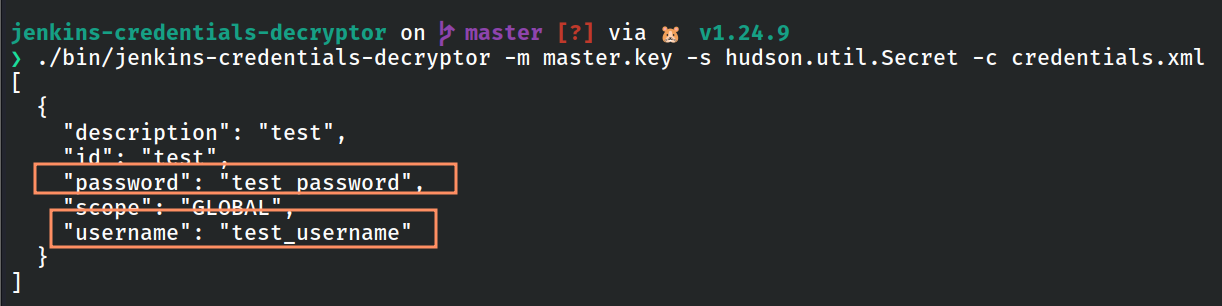
Figure 6: Running tool
The decryption process is successful however it is not portable, as it requires cloning tools and installing dependencies. This consumes both time and disk space.
To address this, Key Decryptor provides an Online Jenkins decryption tool.
Step 4: KeyDecryptor Online-based Decryption Tool
The process is quite simple:
- In the input text field, paste the contents of the credentials.xml file.
- In the Master Key field, paste the contents of the master.key file.
- Upload the hudson.util.Secret file.
- Click the Decrypt button.
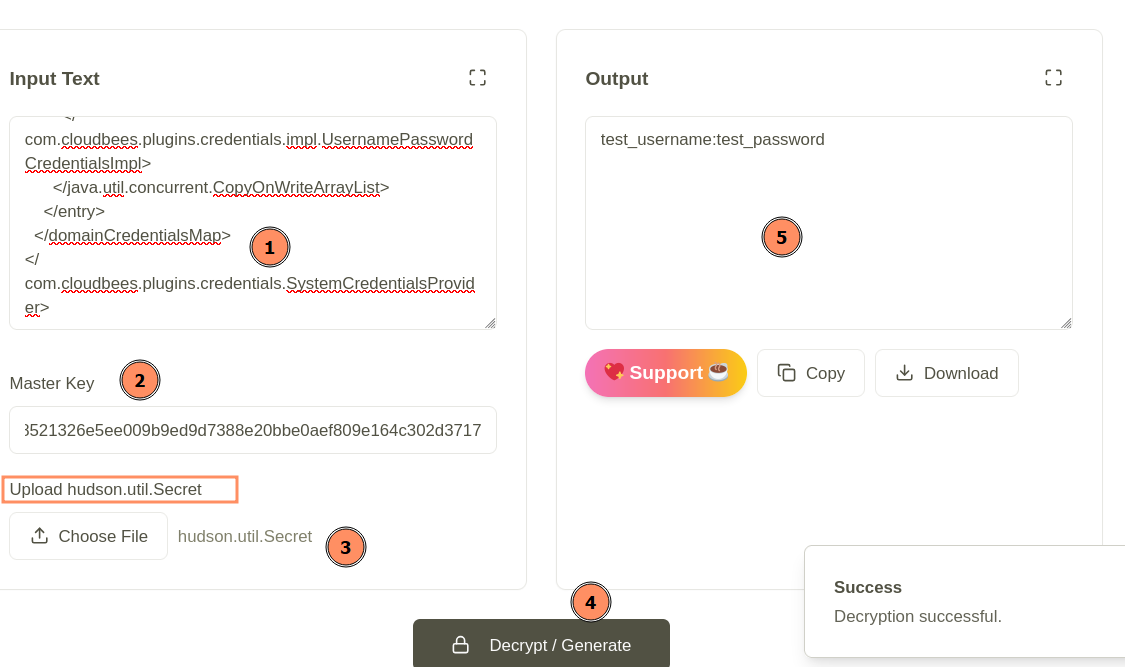
Figure 8: Decrypting credentials on the KeyDecryptor.com site
In this way, Jenkins credentials can be decrypted using both the CLI and the web interface.